> ## Documentation Index
> Fetch the complete documentation index at: https://dub-mintlify-update-supabase-lead-tracking-guide-82850.mintlify.site/llms.txt
> Use this file to discover all available pages before exploring further.
# Shopify
> How to add the @dub/analytics client-side script to your Shopify store
With `@dub/analytics`, you can track lead and sale conversions on your Shopify store, enabling you to measure the effectiveness of your marketing campaigns.
You can add the `@dub/analytics` script to your Shopify store simply by installing the [Dub Shopify App](https://d.to/shopify/app) from the App Store.
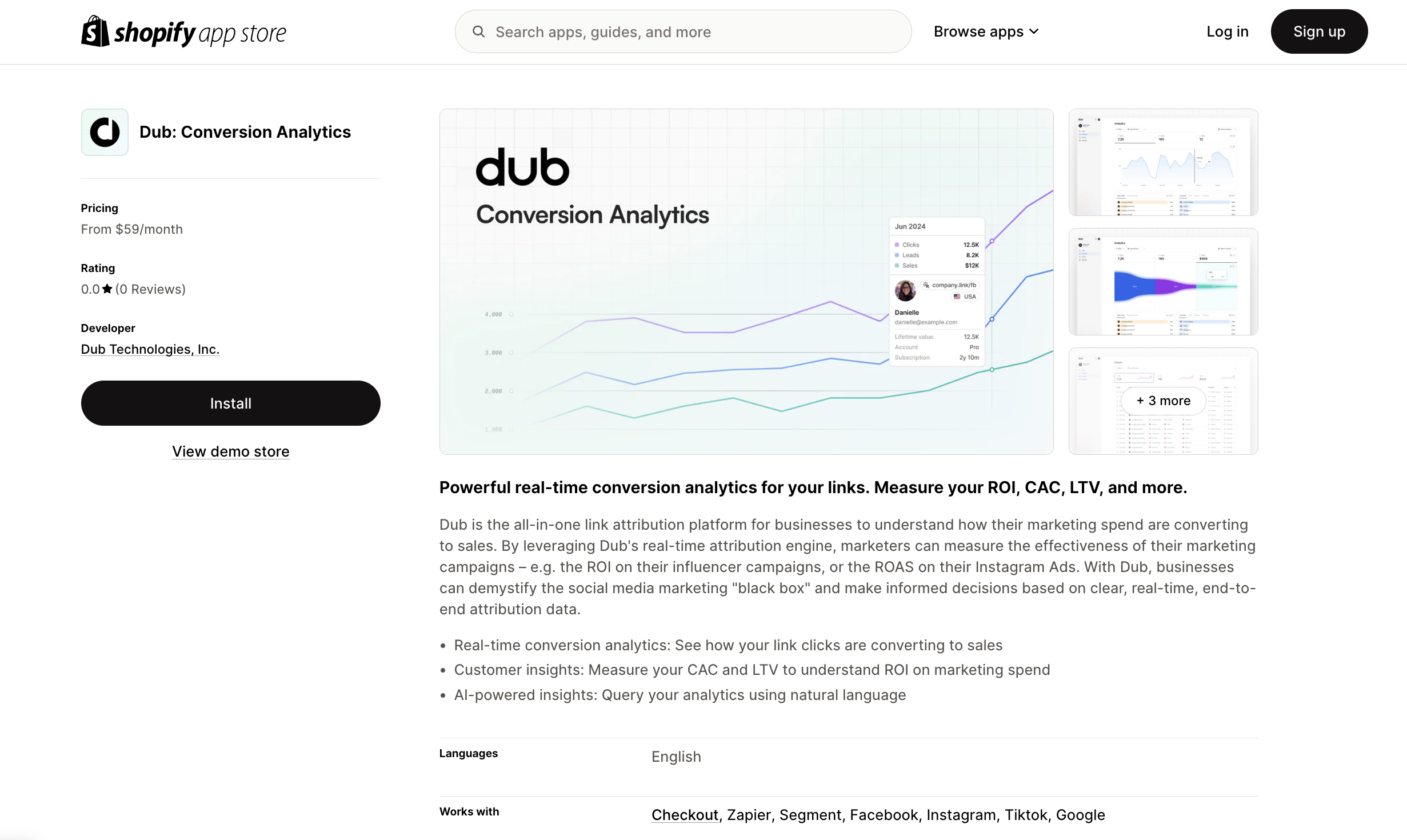 Then, make sure to activate the `@dub/analytics` script by following these steps:
1. Navigate to your Shopify admin panel.
2. Go to **Online Store** > **Themes**.
3. Click on **Customize** for your current theme.
4. In the theme editor, select the **App embeds** tab.
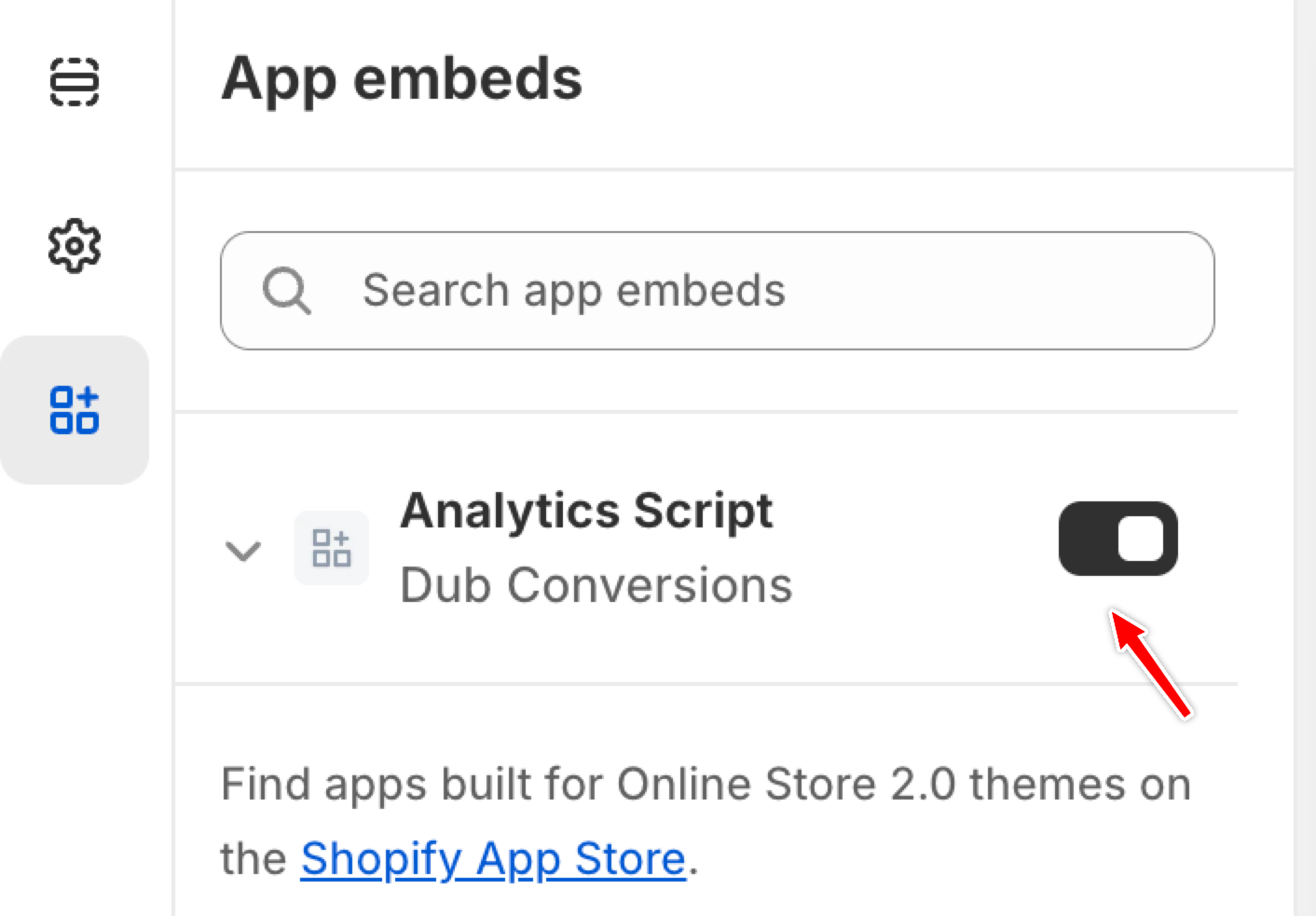
5. Locate the **Analytics Script** for the Dub app and toggle it to activate.
Then, make sure to activate the `@dub/analytics` script by following these steps:
1. Navigate to your Shopify admin panel.
2. Go to **Online Store** > **Themes**.
3. Click on **Customize** for your current theme.
4. In the theme editor, select the **App embeds** tab.
5. Locate the **Analytics Script** for the Dub app and toggle it to activate.
 You can **verify the installation** with the following tests:
1. Open the browser console and type in `_dubAnalytics` – if the script is installed correctly, you should see the `_dubAnalytics` object in the console.
2. Add the `?dub_id=test` query parameter to your website URL and make sure that the `dub_id` cookie is being set in your browser.
If both of these checks pass, the script is installed correctly. Otherwise, please make sure:
* The analytics script was added to the `` section of the page
* If you're using a content delivery network (CDN), make sure to purge any cached content
## Installation video
Here's a video showing how to install and activate the `@dub/analytics` script in your Shopify store:
You can **verify the installation** with the following tests:
1. Open the browser console and type in `_dubAnalytics` – if the script is installed correctly, you should see the `_dubAnalytics` object in the console.
2. Add the `?dub_id=test` query parameter to your website URL and make sure that the `dub_id` cookie is being set in your browser.
If both of these checks pass, the script is installed correctly. Otherwise, please make sure:
* The analytics script was added to the `` section of the page
* If you're using a content delivery network (CDN), make sure to purge any cached content
## Installation video
Here's a video showing how to install and activate the `@dub/analytics` script in your Shopify store: