> ## Documentation Index
> Fetch the complete documentation index at: https://dub-mintlify-update-supabase-lead-tracking-guide-82850.mintlify.site/llms.txt
> Use this file to discover all available pages before exploring further.
# Server-side tracking
> Learn how to track sales conversion events with Dub using server-side tracking
Conversion tracking requires a [Business plan](https://dub.co/pricing)
subscription or higher.
When it comes to [conversion tracking](/conversions/quickstart), a `sale` event happens when a user purchases your product or service. Examples include:
* Subscribing to a paid plan
* Usage expansion (upgrading from one plan to another)
* Purchasing a product from your online store
 In this guide, we will be focusing on tracking sales conversion events with Dub.
## Prerequisites
First, you'll need to enable conversion tracking for your Dub links to be able to start tracking conversions:
If you're using [Dub Partners](/partners/quickstart), you can skip this step
since partner links will have conversion tracking enabled by default.
To enable conversion tracking for all future links in a workspace, you can do the following:
To enable conversion tracking for all future links in a workspace, you can do the following:
1. Navigate to your [workspace's Analytics settings page](https://app.dub.co/settings/analytics).
2. Toggle the **Workspace-level Conversion Tracking** switch to enable conversion tracking for the workspace.
In this guide, we will be focusing on tracking sales conversion events with Dub.
## Prerequisites
First, you'll need to enable conversion tracking for your Dub links to be able to start tracking conversions:
If you're using [Dub Partners](/partners/quickstart), you can skip this step
since partner links will have conversion tracking enabled by default.
To enable conversion tracking for all future links in a workspace, you can do the following:
To enable conversion tracking for all future links in a workspace, you can do the following:
1. Navigate to your [workspace's Analytics settings page](https://app.dub.co/settings/analytics).
2. Toggle the **Workspace-level Conversion Tracking** switch to enable conversion tracking for the workspace.
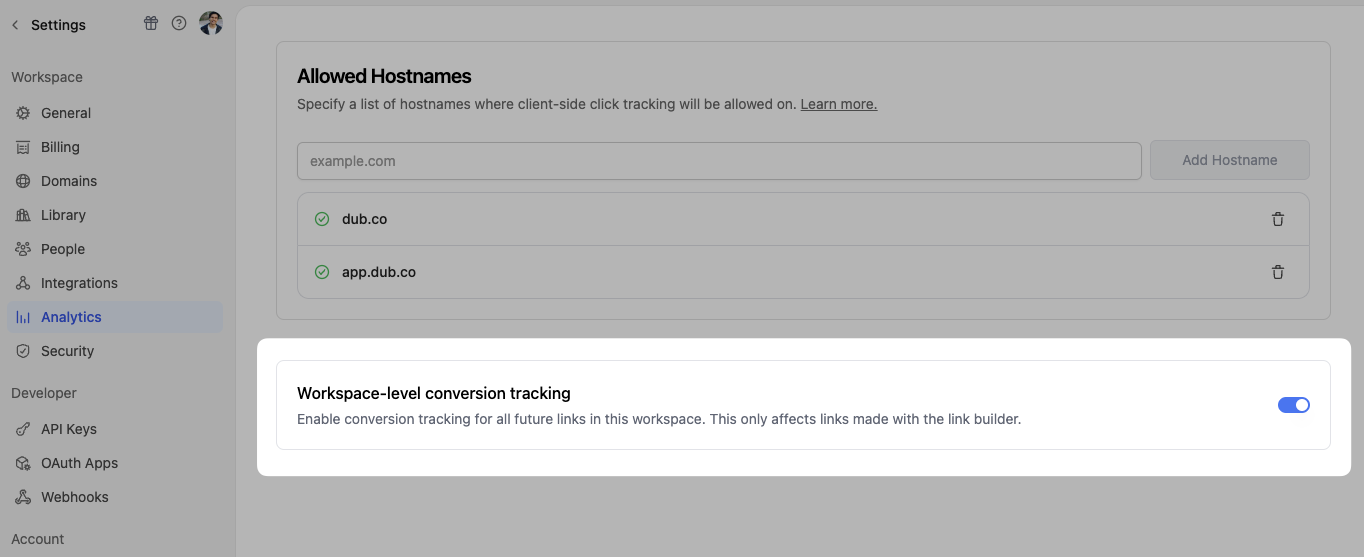 This option will enable conversion tracking in the [Dub Link Builder](https://dub.co/help/article/dub-link-builder) for all future links.
If you don't want to enable conversion tracking for all your links in a workspace, you can also opt to enable it on a link-level.
To enable conversion tracking for a specific link, open the [Dub Link Builder](https://dub.co/help/article/dub-link-builder) for a link and toggle the **Conversion Tracking** switch.
This option will enable conversion tracking in the [Dub Link Builder](https://dub.co/help/article/dub-link-builder) for all future links.
If you don't want to enable conversion tracking for all your links in a workspace, you can also opt to enable it on a link-level.
To enable conversion tracking for a specific link, open the [Dub Link Builder](https://dub.co/help/article/dub-link-builder) for a link and toggle the **Conversion Tracking** switch.
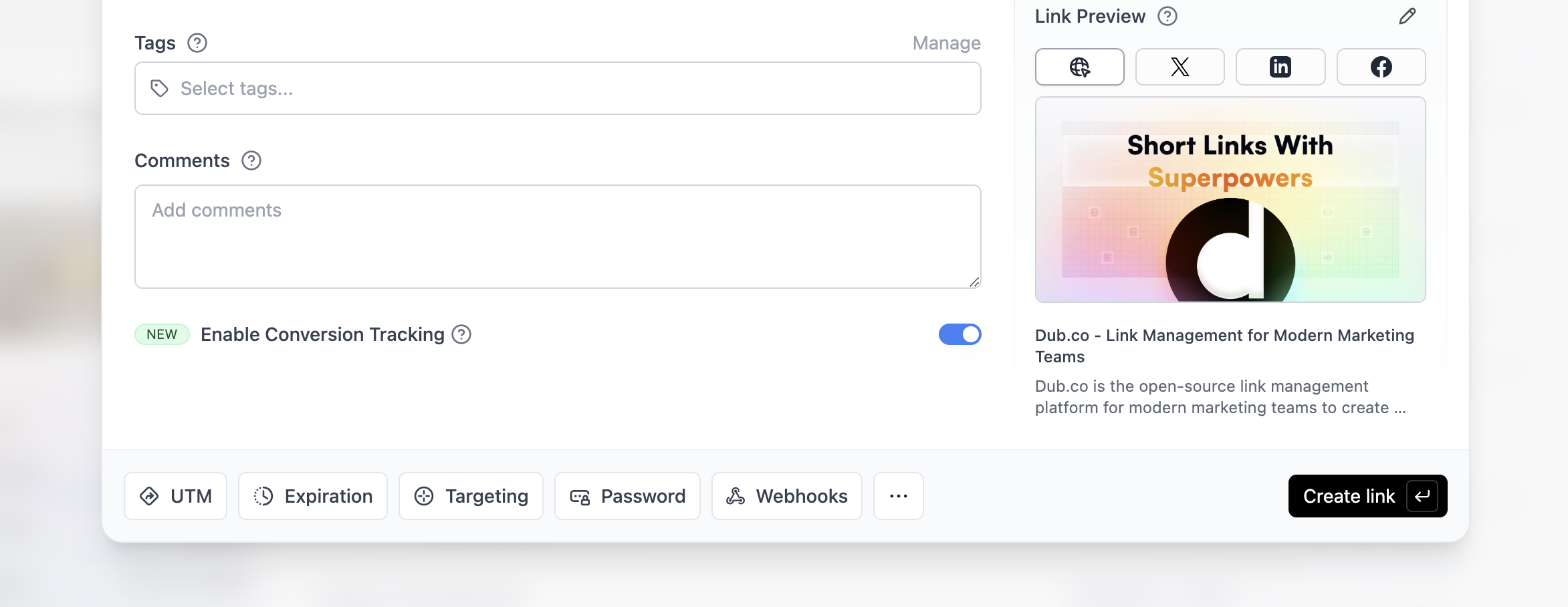 You can also use the `C` keyboard shortcut when inside the link builder to
quickly enable conversion tracking for a given link.
Alternatively, you can also enable conversion tracking programmatically via the [Dub API](/api-reference/introduction). All you need to do is pass `trackConversion: true` when creating or updating a link:
```javascript Node.js
const link = await dub.links.create({
url: "https://dub.co",
trackConversion: true,
});
```
```python Python
link = d.links.create(url="https://dub.co", track_conversion=True)
```
```go Go
link, err := d.Links.Create(ctx, &dub.CreateLinkRequest{
URL: "https://dub.co",
TrackConversion: true,
})
```
```ruby Ruby
s.links.create_many(
::OpenApiSDK::Operations::CreateLinkRequest.new(
url: "https://dub.co",
track_conversion: true,
)
)
```
Then, you'd want to install the `@dub/analytics` script to your website to track conversion events.
You can install the `@dub/analytics` script in several different ways:
}
href="/sdks/client-side/installation-guides/framer"
horizontal
/>
You can **verify the installation** with the following tests:
1. Open the browser console and type in `_dubAnalytics` – if the script is installed correctly, you should see the `_dubAnalytics` object in the console.
2. Add the `?dub_id=test` query parameter to your website URL and make sure that the `dub_id` cookie is being set in your browser.
If both of these checks pass, the script is installed correctly. Otherwise, please make sure:
* The analytics script was added to the `` section of the page
* If you're using a content delivery network (CDN), make sure to purge any cached content
## Step 1: Configure sale tracking
Next, depending on which payment processor you're using, you can leverage our native integrations to track sale events:
Tracking sale conversion events with Stripe and the Dub SDK
Tracking sale conversion events with Shopify and the Dub SDK
If you're not using any of the providers listed above, you can also manually track sale events using our [native SDKs](/sdks/overview) within your backend code:
```javascript Node.js
import { Dub } from "dub";
const dub = new Dub();
await dub.track.sale({
customerExternalId: "cus_RBfbD57HDzPKpduI8elr5qHA",
amount: 100,
paymentProcessor: "stripe",
eventName: "E-book purchase",
invoiceId: "123456",
currency: "usd",
});
```
```python Python
from dub import Dub
import os
dub = Dub(token=os.environ['DUB_API_KEY'])
dub.track.sale({
'external_id': 'cus_RBfbD57HDzPKpduI8elr5qHA',
'amount': 100,
'payment_processor': 'stripe',
'event_name': 'E-book purchase',
'invoice_id': '123456',
'currency': 'usd'
})
```
```go Go
package main
import (
"context"
dub "github.com/dubinc/dub-go"
)
d := dub.New(
dub.WithSecurity(os.Getenv("DUB_API_KEY")),
)
_, err := d.Track.Sale(context.Background(), &operations.TrackSaleRequest{
CustomerExternalId: "cus_RBfbD57HDzPKpduI8elr5qHA",
Amount: 100,
PaymentProcessor: "stripe",
EventName: "E-book purchase",
InvoiceId: "123456",
Currency: "usd",
})
```
```ruby Ruby
require 'dub'
dub = ::OpenApiSDK::Dub.new
dub.config_security(
::OpenApiSDK::Shared::Security.new(
token: ENV['DUB_API_KEY']
)
)
req = ::OpenApiSDK::Operations::TrackSaleRequest.new(
external_id: 'cus_RBfbD57HDzPKpduI8elr5qHA',
amount: 100,
payment_processor: 'stripe',
event_name: 'E-book purchase',
invoice_id: '123456',
currency: 'usd'
)
dub.track.sale(req)
```
```php PHP
setSecurity($_ENV["DUB_API_KEY"])->build();
$request = new Operations\TrackSaleRequest();
$request->customerExternalId = 'cus_RBfbD57HDzPKpduI8elr5qHA';
$request->amount = 100;
$request->paymentProcessor = 'stripe';
$request->eventName = 'E-book purchase';
$request->invoiceId = '123456';
$request->currency = 'usd';
$dub->track->sale($request);
```
Here are the properties you can include when sending a sale event:
| Property | Required | Description |
| :------------------- | :------- | :----------------------------------------------------------------------------------------------------------------------------------------------------- |
| `customerExternalId` | **Yes** | The unique ID of the customer in your system. Will be used to identify and attribute all future events to this customer. |
| `amount` | **Yes** | The amount of the sale in cents. |
| `paymentProcessor` | No | The payment processor that processed the sale (e.g. [Stripe](/conversions/sales/stripe), [Shopify](/conversions/sales/shopify)). Defaults to "custom". |
| `eventName` | No | The name of the event. Defaults to "Purchase". |
| `invoiceId` | No | The invoice ID of the sale. Can be used as a idempotency key – only one sale event can be recorded for a given invoice ID. |
| `currency` | No | The currency of the sale. Defaults to "usd". |
| `metadata` | No | An object containing additional information about the sale. |
## Step 2: View conversion results
And that's it – you're all set! You can now sit back, relax, and watch your conversion revenue grow. We provide 3 different views to help you understand your conversions:
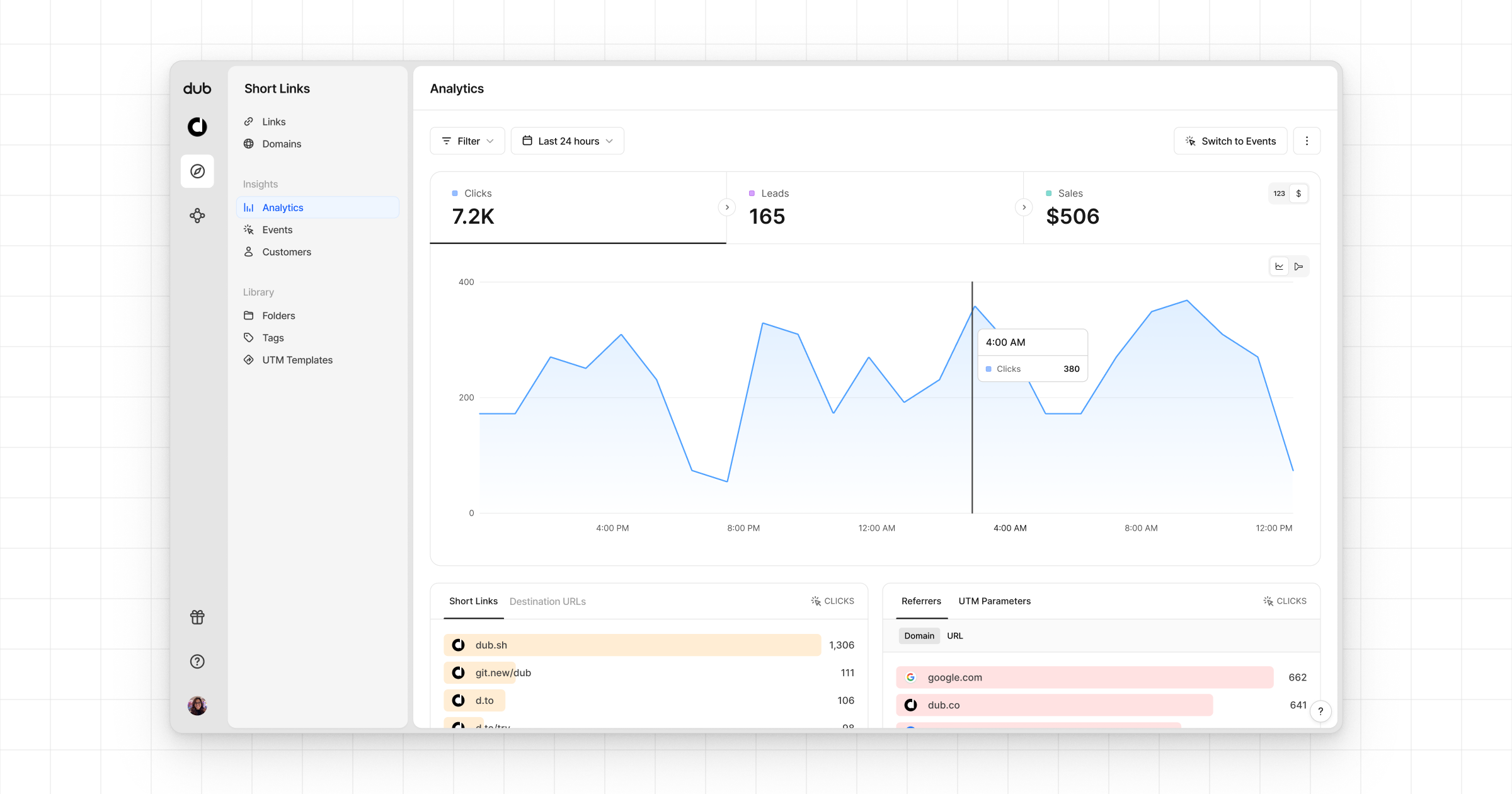
* **Time-series**: A [time-series view](https://app.dub.co/dub/analytics?view=timeseries) of the number clicks, leads and sales.
You can also use the `C` keyboard shortcut when inside the link builder to
quickly enable conversion tracking for a given link.
Alternatively, you can also enable conversion tracking programmatically via the [Dub API](/api-reference/introduction). All you need to do is pass `trackConversion: true` when creating or updating a link:
```javascript Node.js
const link = await dub.links.create({
url: "https://dub.co",
trackConversion: true,
});
```
```python Python
link = d.links.create(url="https://dub.co", track_conversion=True)
```
```go Go
link, err := d.Links.Create(ctx, &dub.CreateLinkRequest{
URL: "https://dub.co",
TrackConversion: true,
})
```
```ruby Ruby
s.links.create_many(
::OpenApiSDK::Operations::CreateLinkRequest.new(
url: "https://dub.co",
track_conversion: true,
)
)
```
Then, you'd want to install the `@dub/analytics` script to your website to track conversion events.
You can install the `@dub/analytics` script in several different ways:
}
href="/sdks/client-side/installation-guides/framer"
horizontal
/>
You can **verify the installation** with the following tests:
1. Open the browser console and type in `_dubAnalytics` – if the script is installed correctly, you should see the `_dubAnalytics` object in the console.
2. Add the `?dub_id=test` query parameter to your website URL and make sure that the `dub_id` cookie is being set in your browser.
If both of these checks pass, the script is installed correctly. Otherwise, please make sure:
* The analytics script was added to the `` section of the page
* If you're using a content delivery network (CDN), make sure to purge any cached content
## Step 1: Configure sale tracking
Next, depending on which payment processor you're using, you can leverage our native integrations to track sale events:
Tracking sale conversion events with Stripe and the Dub SDK
Tracking sale conversion events with Shopify and the Dub SDK
If you're not using any of the providers listed above, you can also manually track sale events using our [native SDKs](/sdks/overview) within your backend code:
```javascript Node.js
import { Dub } from "dub";
const dub = new Dub();
await dub.track.sale({
customerExternalId: "cus_RBfbD57HDzPKpduI8elr5qHA",
amount: 100,
paymentProcessor: "stripe",
eventName: "E-book purchase",
invoiceId: "123456",
currency: "usd",
});
```
```python Python
from dub import Dub
import os
dub = Dub(token=os.environ['DUB_API_KEY'])
dub.track.sale({
'external_id': 'cus_RBfbD57HDzPKpduI8elr5qHA',
'amount': 100,
'payment_processor': 'stripe',
'event_name': 'E-book purchase',
'invoice_id': '123456',
'currency': 'usd'
})
```
```go Go
package main
import (
"context"
dub "github.com/dubinc/dub-go"
)
d := dub.New(
dub.WithSecurity(os.Getenv("DUB_API_KEY")),
)
_, err := d.Track.Sale(context.Background(), &operations.TrackSaleRequest{
CustomerExternalId: "cus_RBfbD57HDzPKpduI8elr5qHA",
Amount: 100,
PaymentProcessor: "stripe",
EventName: "E-book purchase",
InvoiceId: "123456",
Currency: "usd",
})
```
```ruby Ruby
require 'dub'
dub = ::OpenApiSDK::Dub.new
dub.config_security(
::OpenApiSDK::Shared::Security.new(
token: ENV['DUB_API_KEY']
)
)
req = ::OpenApiSDK::Operations::TrackSaleRequest.new(
external_id: 'cus_RBfbD57HDzPKpduI8elr5qHA',
amount: 100,
payment_processor: 'stripe',
event_name: 'E-book purchase',
invoice_id: '123456',
currency: 'usd'
)
dub.track.sale(req)
```
```php PHP
setSecurity($_ENV["DUB_API_KEY"])->build();
$request = new Operations\TrackSaleRequest();
$request->customerExternalId = 'cus_RBfbD57HDzPKpduI8elr5qHA';
$request->amount = 100;
$request->paymentProcessor = 'stripe';
$request->eventName = 'E-book purchase';
$request->invoiceId = '123456';
$request->currency = 'usd';
$dub->track->sale($request);
```
Here are the properties you can include when sending a sale event:
| Property | Required | Description |
| :------------------- | :------- | :----------------------------------------------------------------------------------------------------------------------------------------------------- |
| `customerExternalId` | **Yes** | The unique ID of the customer in your system. Will be used to identify and attribute all future events to this customer. |
| `amount` | **Yes** | The amount of the sale in cents. |
| `paymentProcessor` | No | The payment processor that processed the sale (e.g. [Stripe](/conversions/sales/stripe), [Shopify](/conversions/sales/shopify)). Defaults to "custom". |
| `eventName` | No | The name of the event. Defaults to "Purchase". |
| `invoiceId` | No | The invoice ID of the sale. Can be used as a idempotency key – only one sale event can be recorded for a given invoice ID. |
| `currency` | No | The currency of the sale. Defaults to "usd". |
| `metadata` | No | An object containing additional information about the sale. |
## Step 2: View conversion results
And that's it – you're all set! You can now sit back, relax, and watch your conversion revenue grow. We provide 3 different views to help you understand your conversions:
* **Time-series**: A [time-series view](https://app.dub.co/dub/analytics?view=timeseries) of the number clicks, leads and sales.
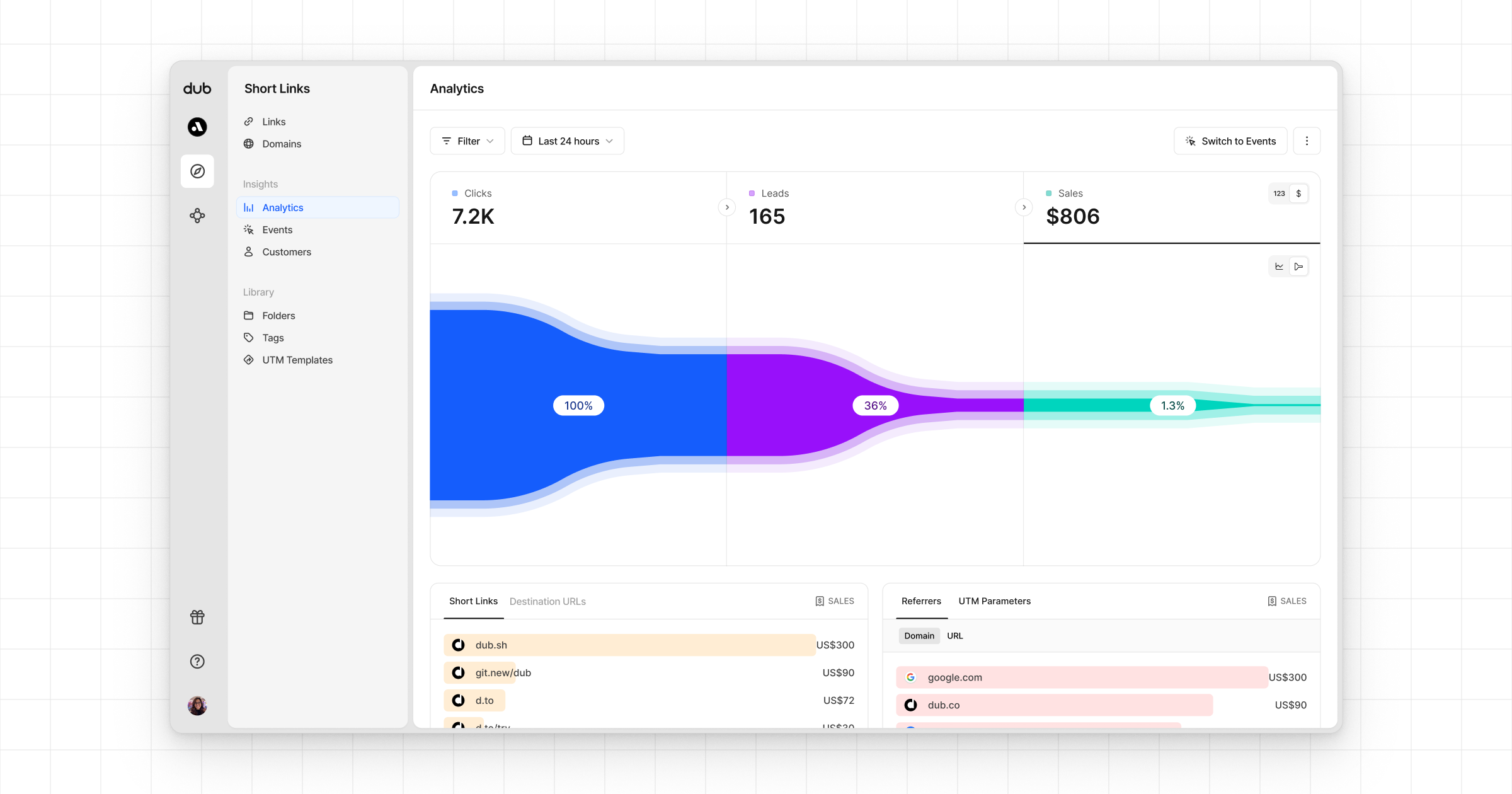
 * **Funnel chart**: A [funnel chart view](http://app.dub.co/analytics?view=funnel) visualizing the conversion & dropoff rates across the different steps in the conversion funnel (clicks → leads → sales).
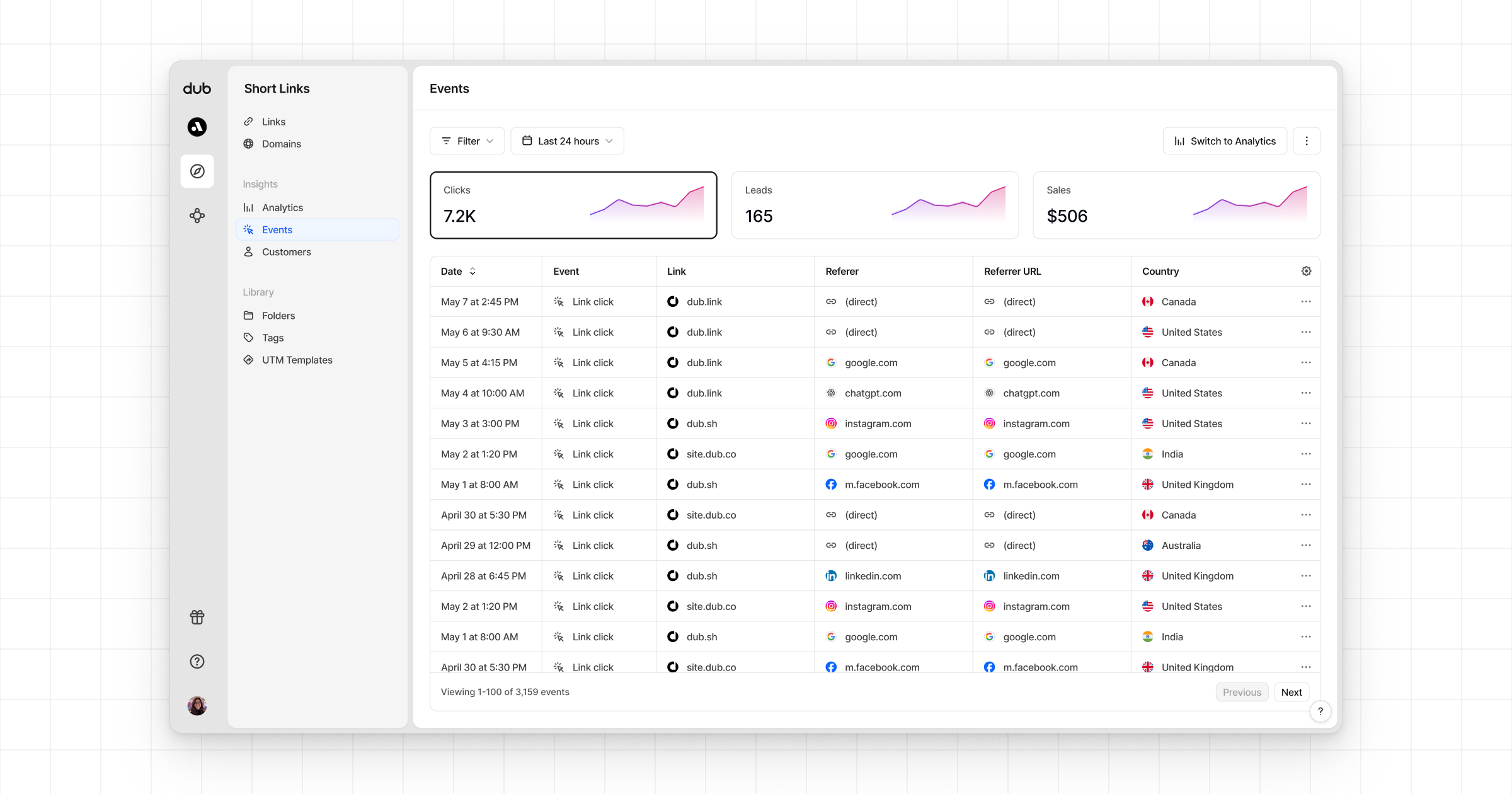
 * **Real-time events stream**: A [real-time events stream](https://app.dub.co/events) of every single conversion event that occurs across all your links in your workspace.
 ## Currency conversion support
For simplicity, Dub records all sales in the default currency of your Dub workspace. This means that if you pass a different currency, it will be automatically converted to USD for reporting consistency – using the latest foreign exchange rates.
```typescript TypScript
await dub.track.sale({
customerExternalId: "cus_RBfbD57HDzPKpduI8elr5qHA",
amount: 15480, // this will be converted from PLN to USD
currency: "pln",
paymentProcessor: "stripe",
eventName: "Purchase",
});
```
The default currency for all Dub workspaces is currently set to `USD`. We will
add the ability to customize that in the future.
## Currency conversion support
For simplicity, Dub records all sales in the default currency of your Dub workspace. This means that if you pass a different currency, it will be automatically converted to USD for reporting consistency – using the latest foreign exchange rates.
```typescript TypScript
await dub.track.sale({
customerExternalId: "cus_RBfbD57HDzPKpduI8elr5qHA",
amount: 15480, // this will be converted from PLN to USD
currency: "pln",
paymentProcessor: "stripe",
eventName: "Purchase",
});
```
The default currency for all Dub workspaces is currently set to `USD`. We will
add the ability to customize that in the future.